SAND
New member
Description:
I’ve been noticing consistent frametime spikes whenever I press any keyboard key or mouse button while playing Deadlock.
Even though my average FPS is very high, the input causes visible stutter and a sharp drop in 0.1% lows.
For example, my 0.1% lows drop from around 120+ down to ~40 FPS whenever I press a key or click the mouse.
The stutters stop completely when no inputs are being made.
This issue doesn’t occur in other Source 2 or DX12 games like CS2 or BO6, so it seems unique to Deadlock.
View attachment 314dd750-a64f-4ad4-9021-9ff5aa2959bd.mp4
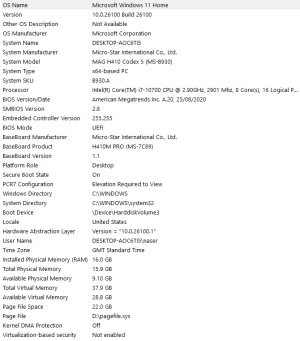
My system specs:
What I’ve tried so far:
No improvement — the issue persists across all configurations.
Notes:
The frametime spikes are very consistent and reproducible.
It feels like input events are being processed on the same thread as rendering, which causes momentary stalls each time an input is registered.
Average frame times remain low and stable when no input is pressed. This has not always been a problem — it started occurring about a month ago. It’s been driving me crazy because I thought something was wrong with my PC, but I finally figured out it’s caused by Deadlock itself.
I’ve been noticing consistent frametime spikes whenever I press any keyboard key or mouse button while playing Deadlock.
Even though my average FPS is very high, the input causes visible stutter and a sharp drop in 0.1% lows.
For example, my 0.1% lows drop from around 120+ down to ~40 FPS whenever I press a key or click the mouse.
The stutters stop completely when no inputs are being made.
This issue doesn’t occur in other Source 2 or DX12 games like CS2 or BO6, so it seems unique to Deadlock.
View attachment 314dd750-a64f-4ad4-9021-9ff5aa2959bd.mp4
My system specs:
- CPU: Ryzen 7 5800X3D
- GPU: RTX 4080
- RAM: 32 GB DDR4-3600 MHz CL18
- OS: Windows 11 (latest updates)
- Drivers: Latest NVIDIA + AMD chipset drivers installed
What I’ve tried so far:
- Reinstalled the game
- Changed USB ports (rear I/O and front)
- Disabled all background apps (G Hub, iCUE, Synapse, etc.)
- Tested different keyboard/mouse polling rates (1000 → 500 → 250 Hz)
- Tried both Vulkan and DX11 renderers
- Verified game files and reinstalled drivers
- Windows reset
- Disabled Wi-Fi and Bluetooth in the BIOS
No improvement — the issue persists across all configurations.
Notes:
The frametime spikes are very consistent and reproducible.
It feels like input events are being processed on the same thread as rendering, which causes momentary stalls each time an input is registered.
Average frame times remain low and stable when no input is pressed. This has not always been a problem — it started occurring about a month ago. It’s been driving me crazy because I thought something was wrong with my PC, but I finally figured out it’s caused by Deadlock itself.