Game crashing at launch since january

valleyofscreams

New member
What happens is

i click launch on steam

the valve logo appears for 3 seconds then the in game cursor appears and the game closes itself with no crash report or error

i know it works because i used to play it on the exact same laptop before, i found a few threads with the same error but none had a solution to this, my friend had this bug too but it randomly went away for him, around january it started crashing after valve logo and since then i have not been able to play, this is really bumming me out, i tried reinstalling the game, updating drivers and even after wiping my laptop to clear it out it still crashes on a fresh install, i have found a lot of possible solutions online but none worked for me sadly

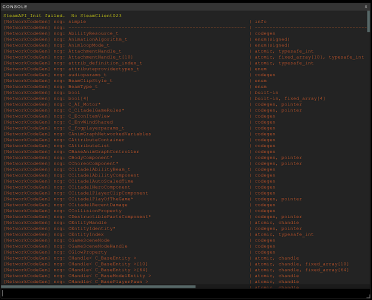
my friend recommended me to quickly try and open the console and take a screenshot of it before the game closed because the game does not generate crash logs, i am not sure how helpful this is but this is the screenshot of the console right before the game closes
Screenshot_6.png

the solutions i tried are

delete boot.vcfg
verify file integrity in steam and reinstall the game
launch steam/deadlock.exe as admin(tried both)
reinstall steam entirely (did not work)
launch with -vulkan and -dx11
launch in windowed/borderless mode
disable steam overlay
delete video.txt or replace video.txt with video.txt.bak
 
Before getting too deep into debugging, I'd recommend you make sure your system is entirely up to date; both in terms of the OS, and GPU drivers.

What OS and version are you using?
 
Before getting too deep into debugging, I'd recommend you make sure your system is entirely up to date; both in terms of the OS, and GPU drivers.

What OS and version are you using?
i'm using windows 10 with the latest amd drivers, all are up to date, i also tried installing the amd drivers i had at the moment when i could play the game, but that did not work sadly
 
Firstly, there are basic checks to get out the way before delving deeper - I'd make sure you do the following before looking at the next steps:
  1. Are you running Deadlock from the Steam client itself, not the .exe directly or a shortcut you made?
  2. Does the game belong to your account? I.e. does this game appear in your library if you search for it or have you downloaded it via a family account?
So - in brief - the SteamAPI_Init function will fail because it's unable to connect to the client libraries. It can happen for a number of reasons, one is that Steam and Deadlock are running in different contexts. To check this, you will need to check the username associated with each running application, follow these steps:
  1. Ensure Steam is running
  2. Open the task manager, and navigate to the Details tab
  3. Look for steam.exe and make note of the username associated with it (this is your Windows user)
  4. Run Deadlock, and before it crashes see if you can observe what username is associated with it.
If you're unable to observe the Deadlock application in time before it crashes, you can make use of Windows Event Viewer tool:
  1. Windows key -> search for "Event Viewer"
  2. Once opened, navigate to Windows Logs -> Application
  3. Run Deadlock, and let it crash so a fresh event is generated
  4. Click on the latest Deadlock error event
  5. At the bottom of the Event Viewer window you'll see a list of information associated with the event, including the User.
Both of the values should match up, otherwise the failure is a result of differing contexts so the application is incapable of accessing the Steam client libraries. If that is the case, I would recommend re-installing both Steam and Deadlock in the same context, so that they run in the same context by default. This just means installing Steam as a non-admin, and Deadlock via the Steam client. If this issue persists (and you've identified that it's a context issue) then you'll just need to find the respective .exe files, right click properties and make sure "Run as administrator" is unchecked.

Edit: If it's none of the above, I'll have a looksie and see what edge cases might cause this o/
 
Last edited:
Firstly, there are basic checks to get out the way before delving deeper - I'd make sure you do the following before looking at the next steps:
  1. Are you running Deadlock from the Steam client itself, not the .exe directly or a shortcut you made?
  2. Does the game belong to your account? I.e. does this game appear in your library if you search for it or have you downloaded it via a family account?
So - in brief - the SteamAPI_Init function will fail because it's unable to connect to the client libraries. It can happen for a number of reasons, one is that Steam and Deadlock are running in different contexts. To check this, you will need to check the username associated with each running application, follow these steps:
  1. Ensure Steam is running
  2. Open the task manager, and navigate to the Details tab
  3. Look for steam.exe and make note of the username associated with it (this is your Windows user)
  4. Run Deadlock, and before it crashes see if you can observe what username is associated with it.
If you're unable to observe the Deadlock application in time before it crashes, you can make use of Windows Event Viewer tool:
  1. Windows key -> search for "Event Viewer"
  2. Once opened, navigate to Windows Logs -> Application
  3. Run Deadlock, and let it crash so a fresh event is generated
  4. Click on the latest Deadlock error event
  5. At the bottom of the Event Viewer window you'll see a list of information associated with the event, including the User.
Both of the values should match up, otherwise the failure is a result of differing contexts so the application is incapable of accessing the Steam client libraries. If that is the case, I would recommend re-installing both Steam and Deadlock in the same context, so that they run in the same context by default. This just means installing Steam as a non-admin, and Deadlock via the Steam client. If this issue persists (and you've identified that it's a context issue) then you'll just need to find the respective .exe files, right click properties and make sure "Run as administrator" is unchecked.

Edit: If it's none of the above, I'll have a looksie and see what edge cases might cause this o/
hey, i tried both things you recommended

first method: everything matches, my username is evelynn and it says evelynn as the user on both steam, deadlock and everything else except system stuff

second method: i checked the event viewer after launching deadlock and it does not get recorded i presume? the only events in the "windows logs>application" list are some logs called "SecurityCenter" and "Security-SPP", launching deadlock and letting it crash afterwards does not make anything new show up, i think that the game does not considering it as crashing due to the "closing itself" part, earlier while testing if i delete a game file and then launch it, the game records a crash log, however, if i just launch it with this bug, it does not generate crashlogs

at this point i am really not sure what to do even if a whole laptop factory wipe did not help, but thank you for your help either way.
 
Dang, I'm sorry I couldn't be of greater help to you :( - sadly there's so many variables with something like this, particularly for games in active development. A bit of a nuclear option may be to take the free upgrade to Windows 11 and see if that works for you, security updates for Windows 10 have ended anyway (except if you manually opt into the ones that they've extended until October 13th 2026 via the extended support updates), so I'd recommend doing that anyway :).

But for the purpose of playing Deadlock, it may be enough of a change to somehow fix your issue. Worth a try if you're desperate enough to play :).

Edit: thinking on this a bit more, I just wanted to throw a couple last ditch efforts without any major changes to your machine:
  1. One of the other reasons SteamAPI_Init fails to initialize is a failure in returning an App ID. I suspect this is unlikely, but may be worth checking.
    1. Navigate to Deadlock in your Steam library, right click > manage > browse local files
    2. Go to this directory: game > bin > win64
    3. In the win64 directory, there should be a steam_appid file
    4. Open this file, ensure it contains an App ID.
    5. Compare that App ID value to the one that exists in: Deadlock in your Steam library > properties > updates > App ID value at the bottom
  2. There is a chance that this is a network related issue, what happens if you connect to a different WiFi network, or even just hotspot your device from your phone and attempt to boot Deadlock; does it work?
If the second option results in Deadlock booting, it implies an issue with your networks' firewall rules or something along those lines. I can provide added instructions to fix that, if that is the case.
 
Last edited:
Dang, I'm sorry I couldn't be of greater help to you :( - sadly there's so many variables with something like this, particularly for games in active development. A bit of a nuclear option may be to take the free upgrade to Windows 11 and see if that works for you, security updates for Windows 10 have ended anyway (except if you manually opt into the ones that they've extended until October 13th 2026 via the extended support updates), so I'd recommend doing that anyway :).

But for the purpose of playing Deadlock, it may be enough of a change to somehow fix your issue. Worth a try if you're desperate enough to play :).

Edit: thinking on this a bit more, I just wanted to throw a couple last ditch efforts without any major changes to your machine:
  1. One of the other reasons SteamAPI_Init fails to initialize is a failure in returning an App ID. I suspect this is unlikely, but may be worth checking.
    1. Navigate to Deadlock in your Steam library, right click > manage > browse local files
    2. Go to this directory: game > bin > win64
    3. In the win64 directory, there should be a steam_appid file
    4. Open this file, ensure it contains an App ID.
    5. Compare that App ID value to the one that exists in: Deadlock in your Steam library > properties > updates > App ID value at the bottom
  2. There is a chance that this is a network related issue, what happens if you connect to a different WiFi network, or even just hotspot your device from your phone and attempt to boot Deadlock; does it work?
If the second option results in Deadlock booting, it implies an issue with your networks' firewall rules or something along those lines. I can provide added instructions to fix that, if that is the case.
yes i just tried all this, still the same result, the app id is the same as the one in the txt file, tried my phone hotspot, 2 different wifis in my studio but same result, i sort of gave up at this point but i really appreciate your help.
 
RIP, Deadlock is truly borked for you :s. Hopefully you get to play soon if / when this gets resolved :')
 
Back
Top